Setup

How to Setup the Simbound simulation for course success

Obtain an account

To use Simbound, you need a valid Instructor Account, which gives you access to simulation management and reporting features.

How to Request Access:

  1. Visit www.simbound.com and navigate to the “Request New Account” page.
  2. Submit your request. Each new account is subject to a quick initial evaluation.
  3. Once approved, you’ll receive an email with instructions on how to access and use the simulation.

Note: You may be asked to provide additional information to complete your request. Please respond promptly to ensure timely approval.
Essential Reading: Licensing system

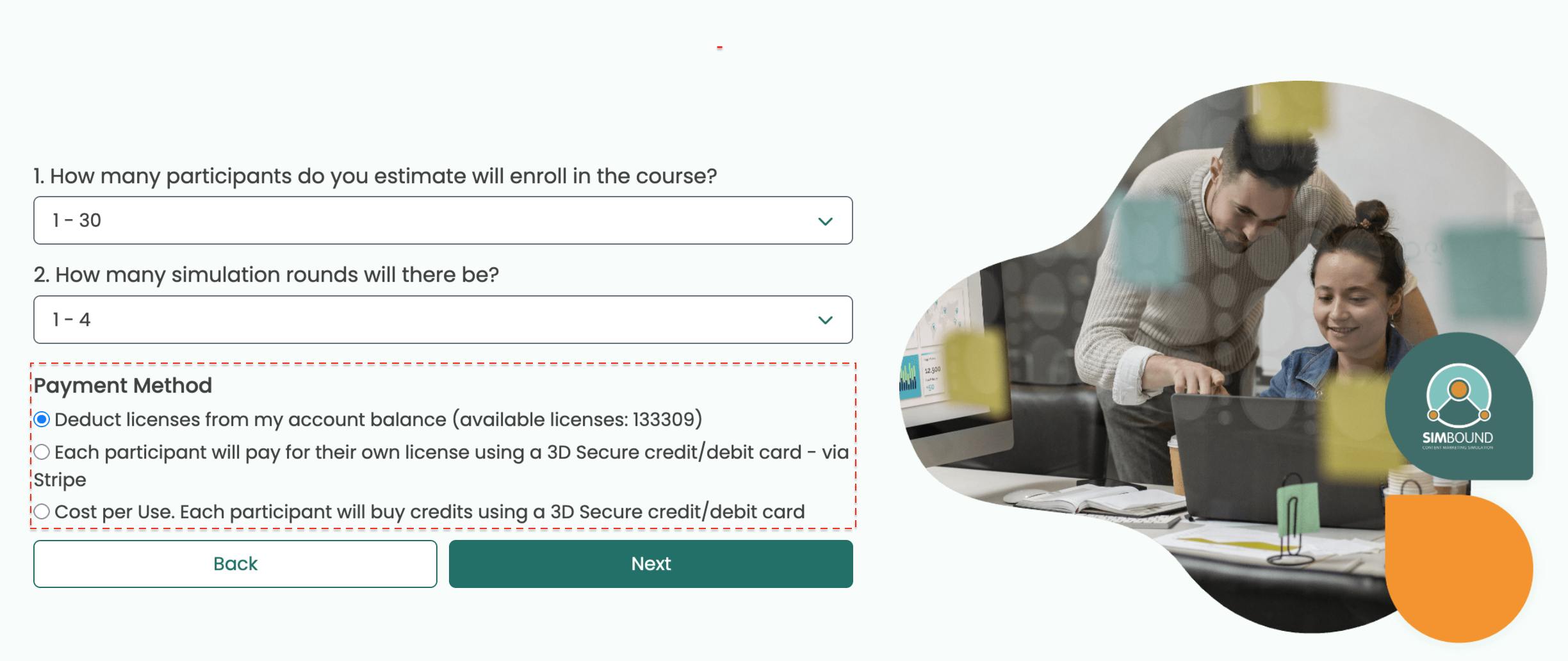
Overview of License method selection

When creating a new course, you’ll choose the licensing method that best fits your needs. Each participant requires an individual user license, valid for one simulation run.

Key Points:

  • Bulk Purchase: Instructors often buy licenses in advance for all participants before the course begins.
  • Flexible Purchase: Licenses can also be purchased by participants during enrollment.
  • Enrollment Flexibility: Participants can enroll even if the instructor’s license balance is zero or negative. In such cases, the instructor must confirm payment for any additional licenses used.
  • Privacy: Participants cannot see the instructor’s remaining license balance or the purchase price.

With the platform credits feature, participants use 1 credit per action or decision and 3 credits to run the simulation and compute results. As the instructor, you can assign a starting credit balance to each participant when they enroll in a credit-enabled course, deducting these credits from your instructor account. Participants can purchase additional credits if they run out.

Tip: You can monitor how licenses and credits are being used by going to the Profile section of the Instructor Account and then to the 'License Management' section
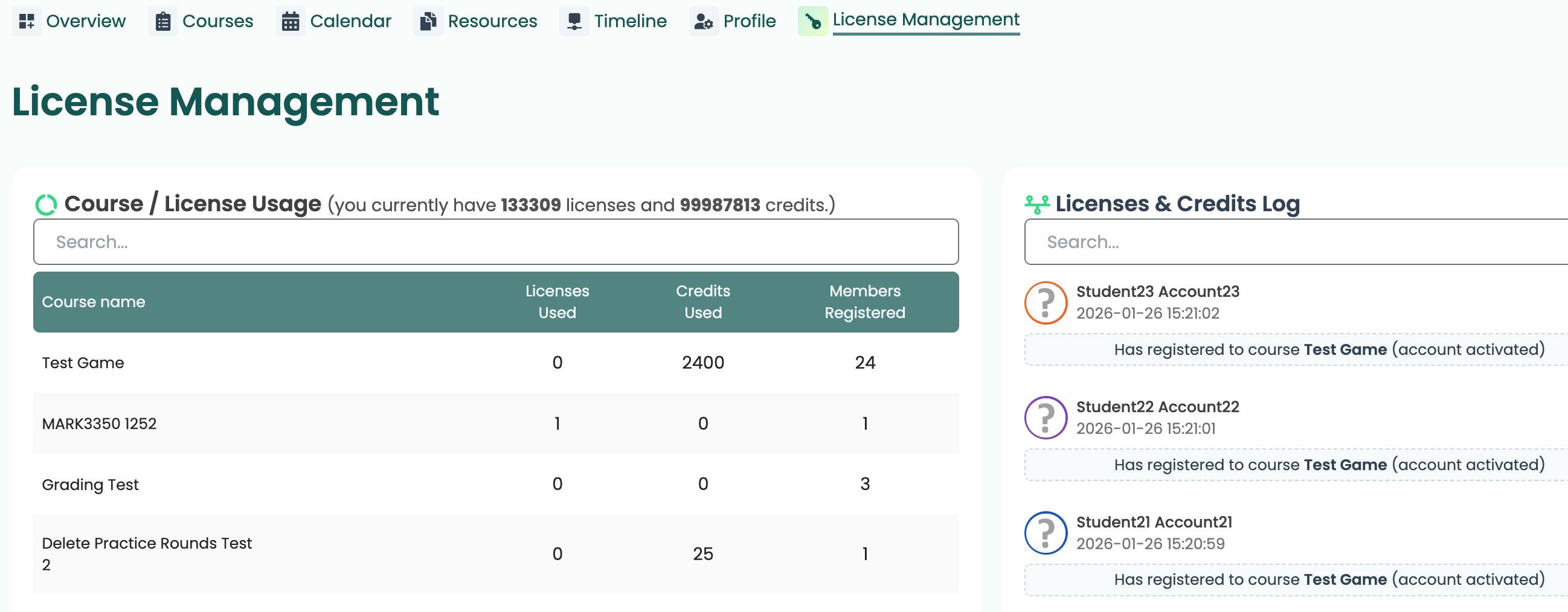
view of licenses management

Please Note: A license is only restored if you remove a participant from the course before the first round deadline. If the same participant is enrolled multiple times, you can keep one account and remove the others. Any licenses used for duplicate enrollments will be immediately returned to your account.

Setting up the course

A course is a simulation instance with several main components: a name, a simulation scenario (made up of market conditions and products), and a timetable. Each new course is assigned with a unique system-generated code, which also serves as the enrollment link.

In order to create your first course, click on the: New Simulation placed on th instructor dashboard.
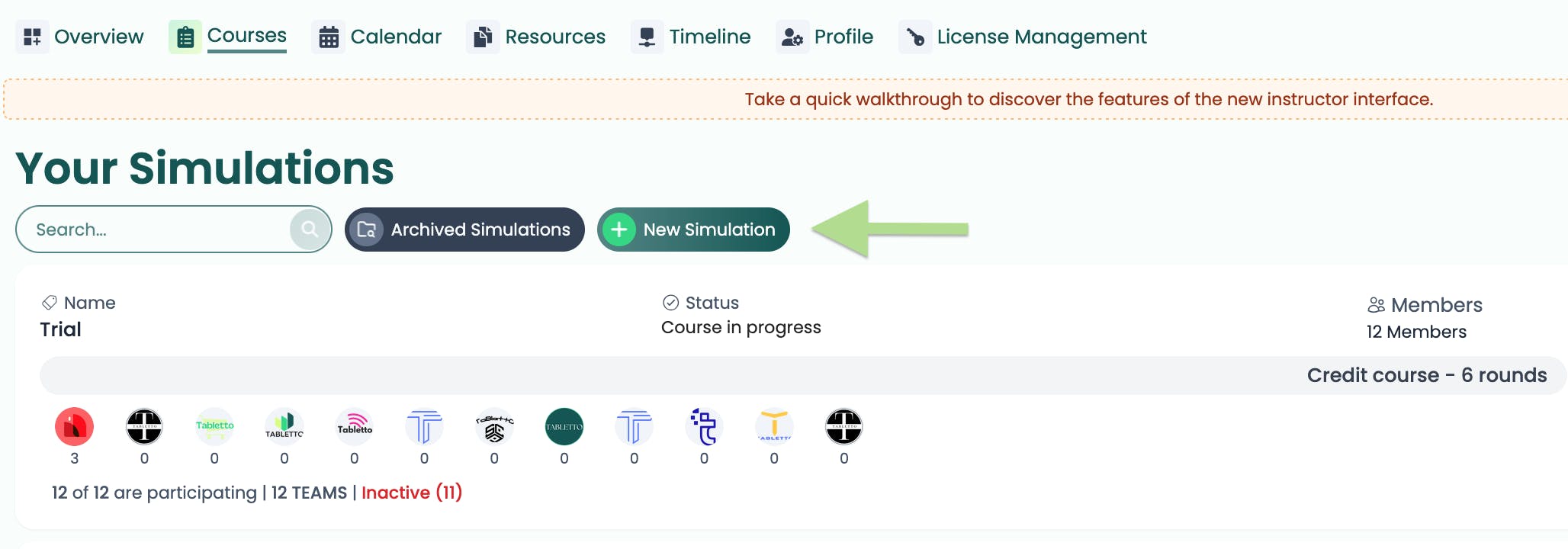
arrow pointing to new simulation button

This will open the Course Builder utility, a step-by-step guide that helps you set up and configure your course.

Course Creation Steps

You’ll enter course details, add participants, choose a schedule, and receive enrollment instructions for participants at the end.
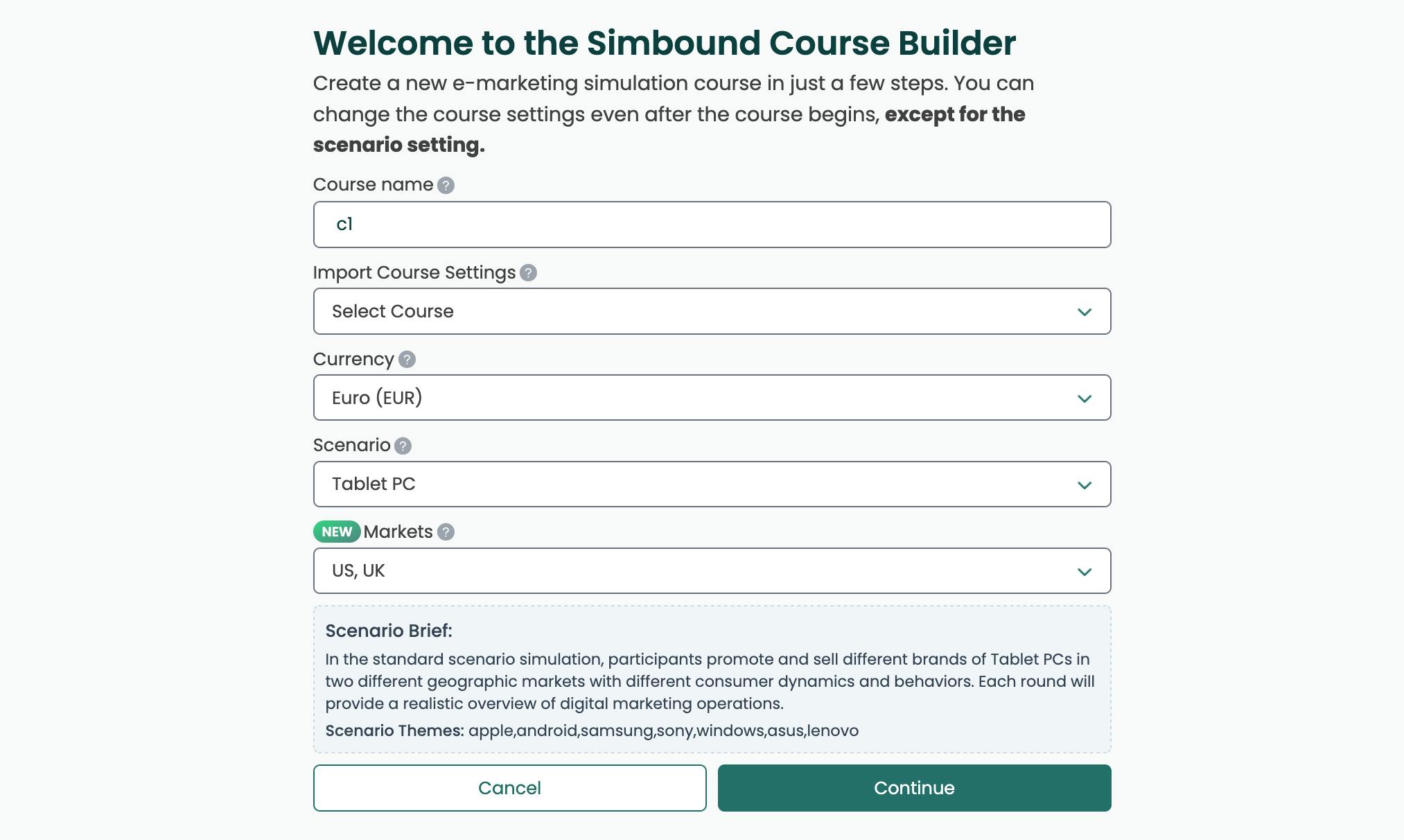
Initial Course Settings

To help speed up course creation you will be presented with a few ready-made course templates which you can customize.
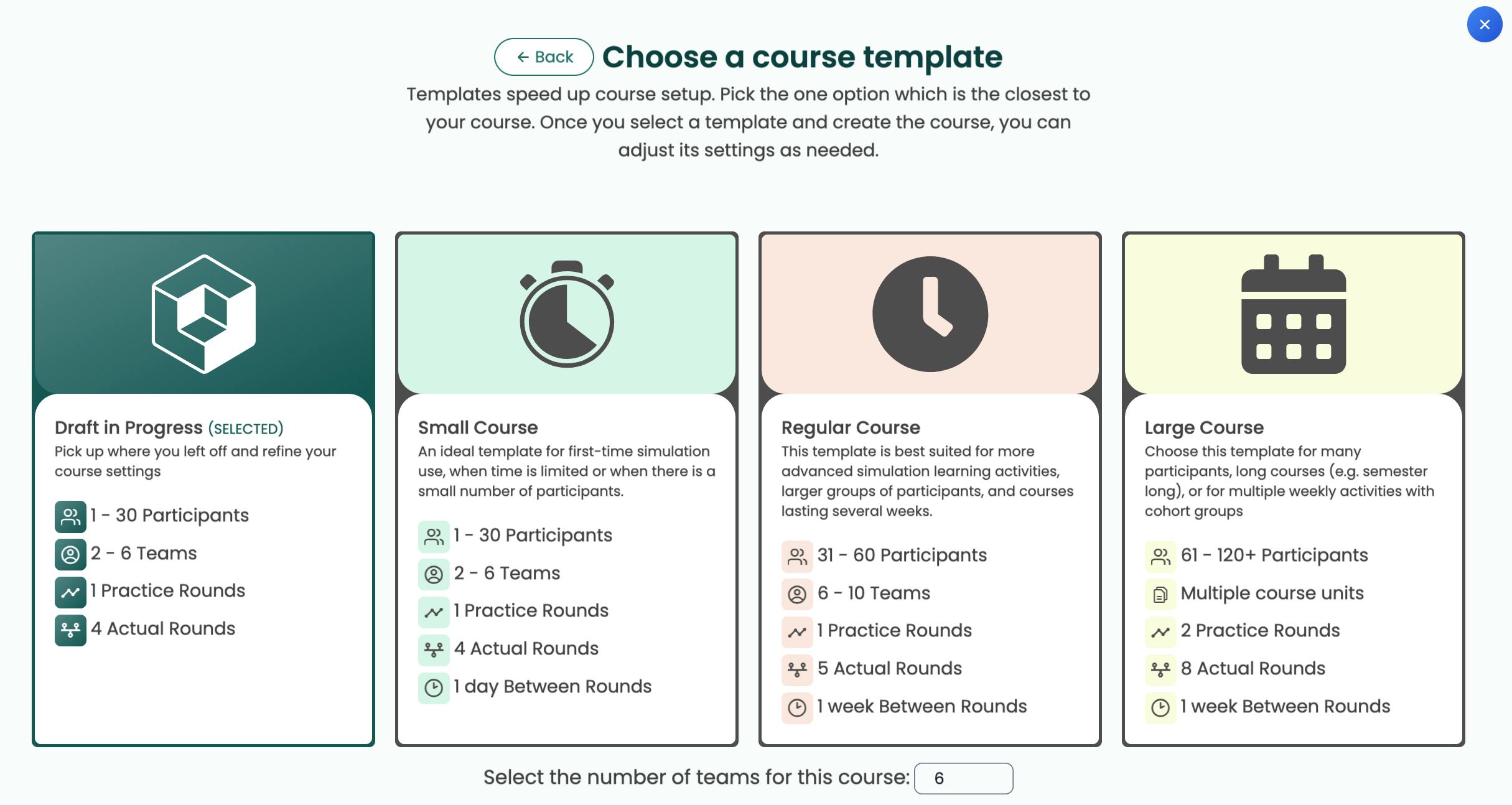
course template selection in Simbound

You can organize your course with up to 16 teams or have participants play individually. If you choose individual play, participants can progress at their own pace—just select the cost-per-use licensing option on the previous step.

With cost-per-use licensing:
  • Learners can restart a round (max 2 restarts per simulation).
  • Restarting lets them revisit a completed round, make new decisions, and try for better results—previous decisions remain intact.

course_calendar_setup

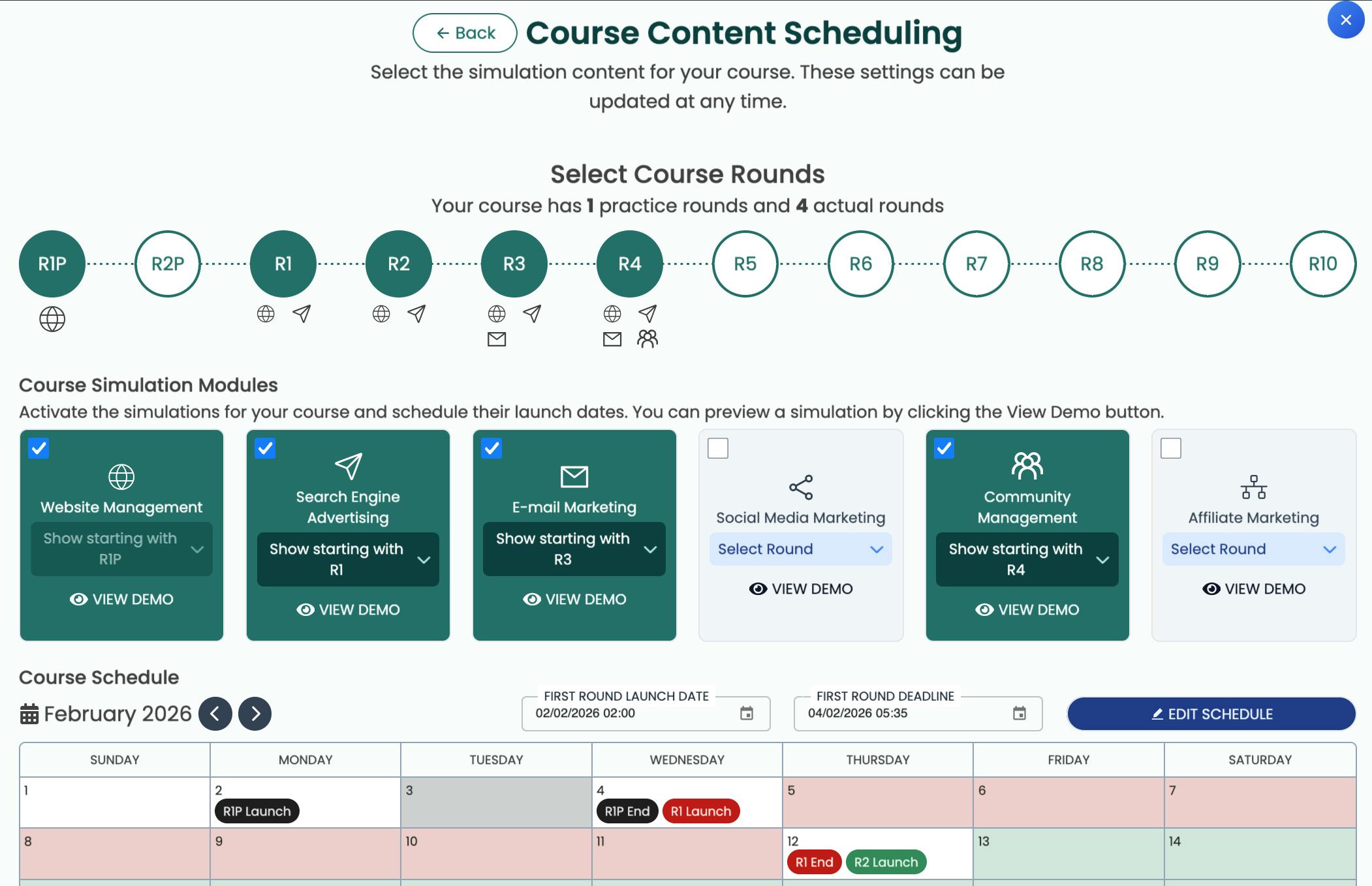
You can schedule various simulation activities on the Schedule (Calendar) step where you define the course timeline, including the number of practice rounds and real rounds, along with their deadlines.

  • Practice Rounds let students make decisions and see how the simulation works before the real rounds begin.
  • Most decisions made during practice rounds are retained and carry over into the real rounds, so students don’t need to start from scratch. The one exception to this rule are E-mail campaigns.

You can tailor the course by selecting which simulations to start with and align their release with your lecture schedule—for example, weekly.

objectives, bonuses, tests

Optional Activities Features:

  • Enable objectives, tests, or bonuses (e.g., reward extra search ad budget for adding 20+ keywords in Round 1).
  • Allow result previews for a set number of rounds—participants see estimated outcomes mid-round to guide adjustments.

Finally, Review and confirm all your course settings. After creation, Simbound generates a unique enrollment link. Share this URL with your students so they can log in and join your course.

Tip: Clone & Archive Courses

  • Clone courses to save time and reuse settings (scenario, currency, teams, rounds, etc.). Note: Participants are not copied.
  • Archive old courses to declutter your dashboard—they’ll be removed from the system over time.

Guidelines for making course settings

You can adjust most course settings—except the scenario and cost-per-use licensing—to fit your needs. For a smooth experience, plan your course structure in advance to minimize changes after launch.
Course Setup Checklist

1. Preparation Time

  • Beginners: Allow 1–2 days for enrollment and prep. Share the business case and weekly guides in advance. Consider an intro meeting.
  • Professionals: 1–2 hours of prep time is sufficient.

2. Participant & Team Planning

  • Team Size: Beginners: 2–4 per team Professionals: 1–3 per team
  • Large Groups (100+ participants): Invite a co-instructor for support. Ensure you have enough licenses before sharing the enrollment link. For better management, split into smaller units (~30 participants per course).
  • Individual Play: Select cost-per-use licensing if no teams are needed.

3. Simulation Schedule

  • Round Timing: Allow at least 1 hour between rounds for analysis and decisions.
  • Recommended Rounds: Beginners: 4+ rounds (+1–2 practice rounds) Professionals: 2–6 rounds (max 10)

Enhance Engagement with Course Activities

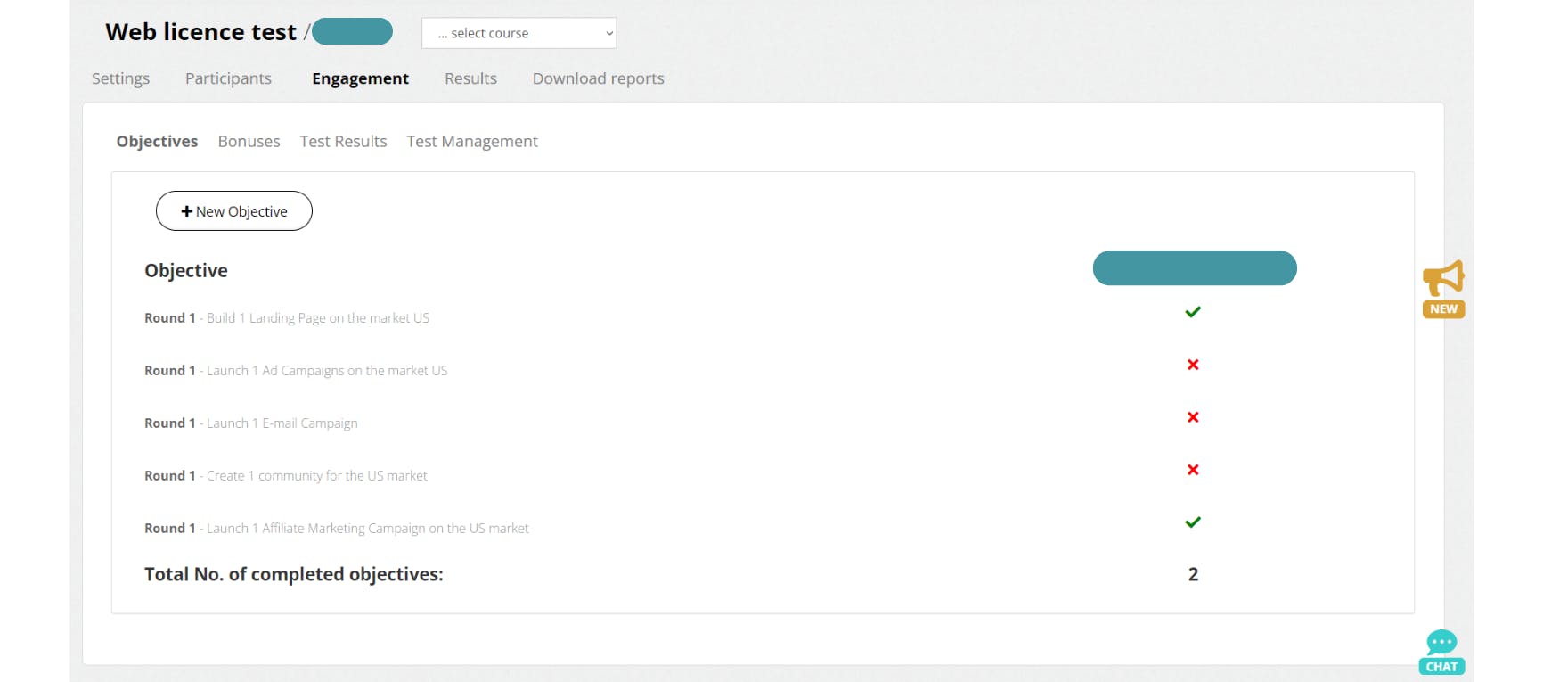
engagement

Boost participation and track progress using customizable activities:
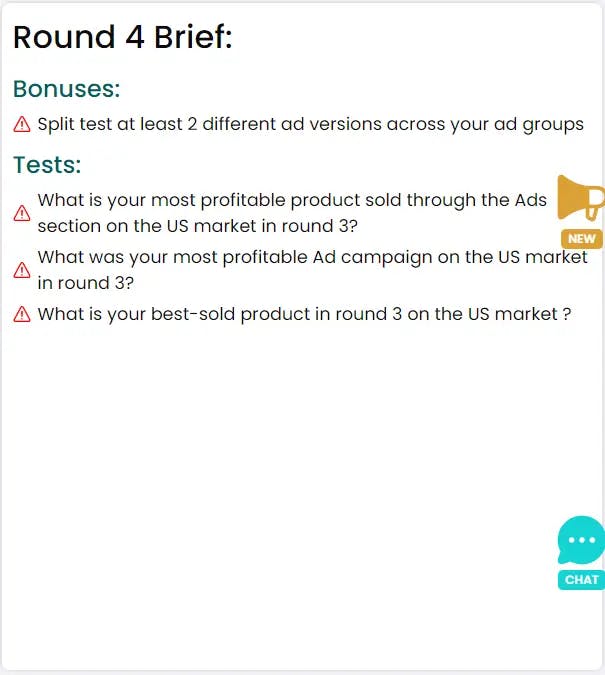
1. Objectives

  • Purpose: Guide participants and measure engagement.
  • How to Use: Add or edit objectives from the calendar before the course starts.
  • Note: Avoid changing or removing objectives once the course is live.

Bonus condition

Bonuses

  • Purpose: Reward participants with extra ad budget for meeting specific goals.
  • How to Use: Enable or disable bonuses in course settings to encourage competition and improve performance.

Test question quiz

Tests

  • Purpose: Assess understanding and track learning progress.
  • How to Use: Add tests from the calendar, with questions on topics like ad campaigns or product sales.
  • Features: Each question has four answer choices (one correct). Participants receive unique answer sets based on their decisions and results. Prevents copying—answers are personalized to each participant or team.

You can also:

  • Enable learning journals to track student progress.
  • Monitor AI usage within the Simbound environment.

Simulation results

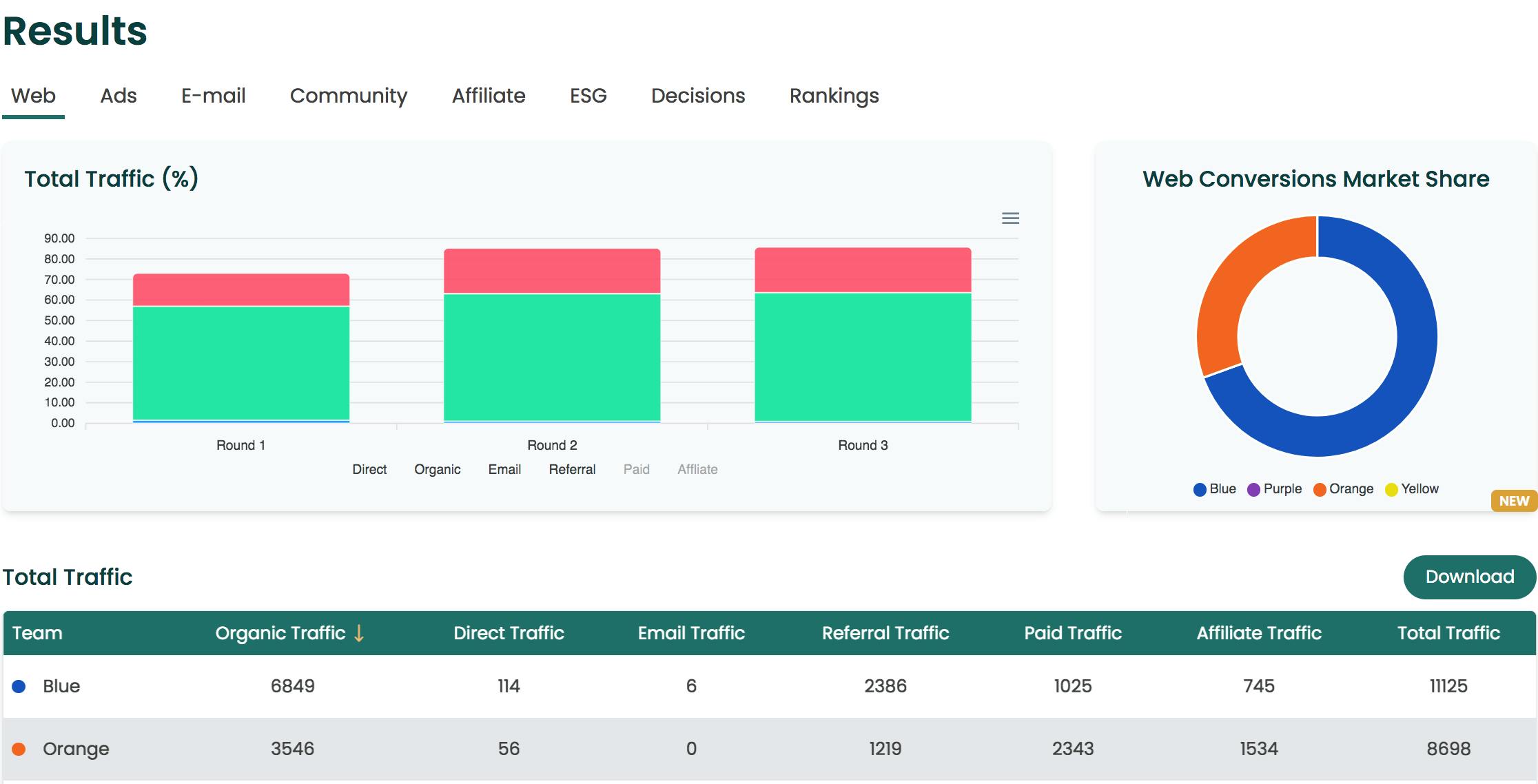
Overview of the Web Simulation Results in Simbound

Analyzing Participant Performance in Simbound

The Results Section provides a comprehensive overview of participant progress, allowing you to track decisions, outcomes, and engagement across all simulation activities. Here’s what you can monitor:

1. Performance Data by Section

  • View detailed results for each team across Web,Search Advertising, Email, Social Media, Affiliate Marketing and Community activities.
  • Track performance over one or multiple rounds to identify trends and improvements.

2. Participant Feedback

  • Read comments and insights shared by participants after each round, giving you qualitative context for their decisions and results.

This section helps you evaluate both quantitative performance and qualitative feedback, ensuring a well-rounded view of participant progress.
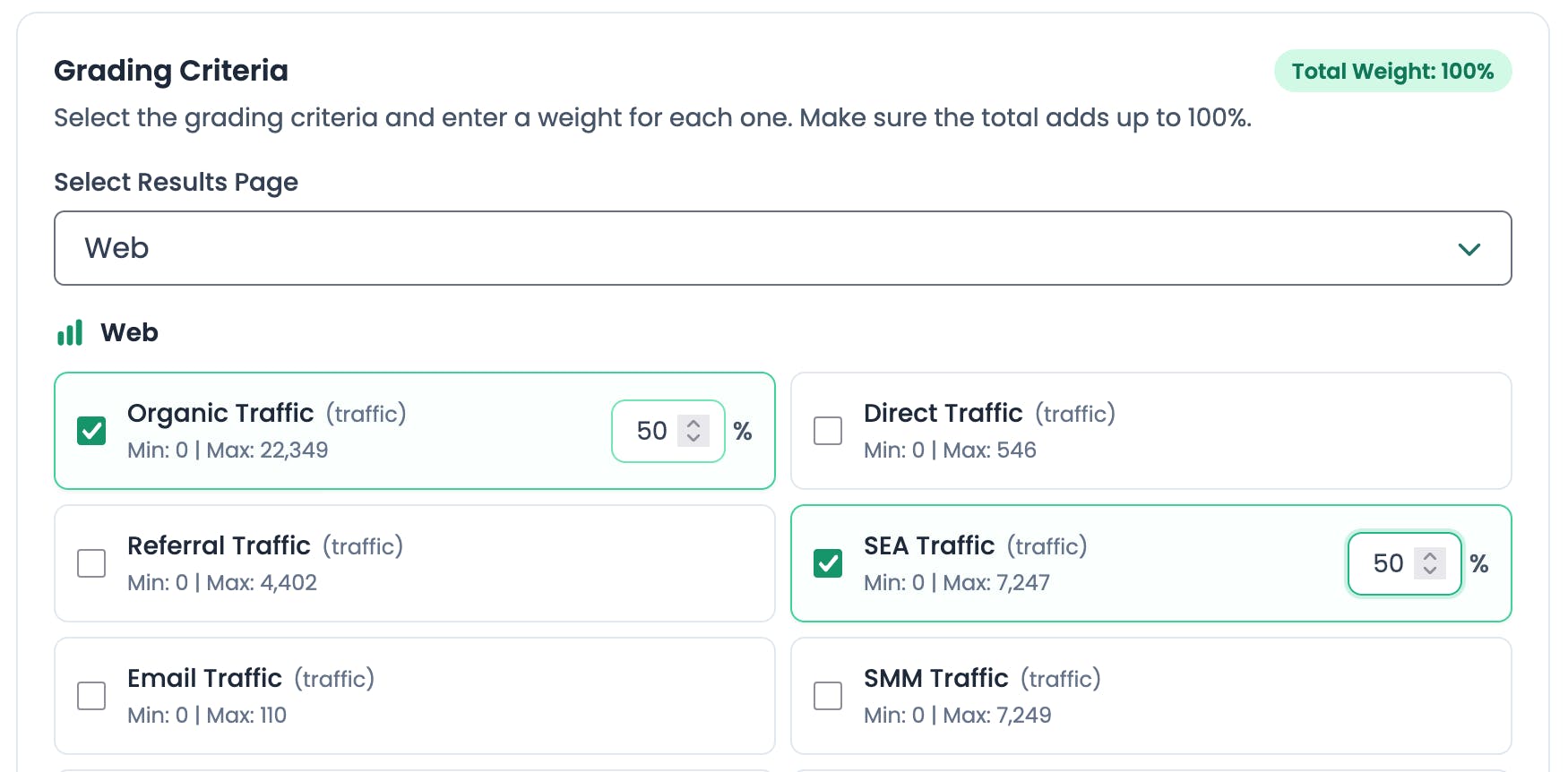
Grading

overview of grading criteria and weight

Simbound’s Grading Tool:

The grading tool in Simbound is designed to help you assess student performance in simulation-based courses, regardless of your institution’s grading system (e.g., CGPA, letter grades, or numerical scales).

How It Works:

  • You define your grade scale (e.g., max/min scores, pass thresholds).
  • You select criteria (e.g., decision quality, financial results, engagement) and assign weights.
  • The tool automatically calculates and scales grades based on student performance data, providing real-time reports and statistics.

Practical Benefits:

  • Saves time by automating calculations and generating summaries.
  • Allows you to adjust weights and thresholds as needed.
  • Provides interim grades, helping you identify learning gaps early.

Considerations:

  • For high-stakes assessments, you may want to combine simulation grades with other assignments (e.g., written justifications, presentations).
  • The tool is flexible, so you can refine your approach as you go.

Appendix 1: Key Paid Search Metrics Explained

1. Impressions

  • What it is: The number of times your ad is displayed.
  • Why it matters: Builds brand awareness and influences other metrics like click-through rate (CTR).
  • Note: Not all impressions are equal—ads in top positions (1–5) or near organic results are more visible and effective.

2. Clicks

  • What it is: The number of times users click on your ad.
  • Why it matters: Indicates purchase intent and helps identify issues in the conversion funnel (e.g., landing page content or pricing).
  • Note: Ad position and budget directly impact click volume.

3. Conversions

  • What it is: Completed campaign goals (e.g., purchases, demo sign-ups, newsletter subscriptions).
  • Why it matters: Measures campaign success and efficiency. Higher conversions can lower advertising costs and improve Quality Score (a metric affecting ad performance and cost).
  • Note: Requires conversion tracking (assumed to be active in Simbound). Influenced by budget, ad quality, and landing page effectiveness.

In Simbound: These metrics are automatically tracked, allowing you to analyze and optimize campaign performance in a simulated environment. Use them to guide students in understanding the impact of their advertising decisions.

Appendix 2: Cost Per Acquisition (CPA) Explained

Definition: Cost Per Acquisition (CPA) measures the average cost to acquire one new customer or lead. It accounts for all ad spend, including clicks from users who did not convert, making it a key indicator of marketing efficiency.

Why CPA Matters:

  • Performance Benchmark: Helps compare the effectiveness of different advertising channels and strategies.
  • Budget Optimization: Identifies which campaigns or channels deliver the lowest cost per customer, guiding resource allocation.
  • Learning Tool: In Simbound, instructors can use CPA to evaluate and compare team performance, reinforcing real-world decision-making skills.

How CPA is Calculated:

CPA=Total Ad SpendNumber of Conversions\text{CPA} = \frac{\text{Total Ad Spend}}{\text{Number of Conversions}}CPA=Number of ConversionsTotal Ad Spend​

Dependent Metrics:

  • Cost Per Click (CPC): The price paid for each click.
  • Conversion Rate: The percentage of clicks that result in a conversion.
  • Conversion Value: The revenue or value generated per conversion.

Practical Use in Simbound:

  • Students analyze CPA to determine which strategies are most cost-effective.
  • Instructors assess team performance by comparing CPA values, encouraging data-driven optimization and critical thinking.

Appendix 3: Return on Advertising Spend (ROAS or ROMI) Explained

Definition: Return on Advertising Spend (ROAS) measures the revenue generated for every unit of currency spent on advertising. It is calculated as:

ROAS=Sales MarginTotal Marketing Budget\text{ROAS} = \frac{\text{Sales Margin}}{\text{Total Marketing Budget}}ROAS=Total Marketing BudgetSales Margin​

(Note: In Simbound, ROAS excludes long-term value factors.)

Interpretation:

  • ROAS > 1: The campaign generated more revenue than it cost, indicating success.
  • ROAS < 1: The campaign did not recover its cost, signaling a need for review or optimization.

Why ROAS Can Be Misleading:

  • Short-Term Focus: ROAS does not account for long-term customer value or brand equity.
  • External Factors: Fluctuations in demand, economic conditions, and customer response can skew results.
  • Context Matters: A high ROAS does not always mean a campaign is strategically sound—it may reflect low competition or temporary market conditions.

What Influences ROAS:

  • Campaign Efficiency: Ad targeting, creative quality, and bidding strategy.
  • Costs & Customer Response: Ad spend, conversion rates, and average order value.
  • Market Conditions: Seasonality, competition, and economic trends.

Practical Use in Simbound:

  • Students use ROAS to evaluate the immediate financial impact of their ad campaigns.
  • Instructors guide analysis by comparing ROAS across teams, encouraging discussion on optimization, budget allocation, and the limitations of short-term metrics.

Request Demo

Transform learning into a fun and memorable exercise. Motivate course participants with a unique suite of interactive content and monitor learner performance using advanced reports and grading tools.