1. Get an instructor account
It all starts with an Instructor Account. This gives you access to the simulation management and reporting tools — course creation, configuring rounds, enrolling participants, reading results and awarding grades.
This guide will walk you through each course creation step—from creating your instructor account to getting participants to enroll.
It all starts with an Instructor Account. This gives you access to the simulation management and reporting tools — course creation, configuring rounds, enrolling participants, reading results and awarding grades.
To use Simbound you will first need a valid Instructor Account. If you don't have one yet, contact Simbound support or your institution's licence administrator to be set up.
You can invite a co-instructor by email. The invitation includes a temporary password and grants access to simulation course management and reporting. If the email is already registered as a student, it will be upgraded to an instructor account. Having co-instructors is ideal to help manage large classes.
After login you will land on the instructor dashboard, where your courses are listed. Click any course name to open and manage it. There is the option to create a new simulation based course.
Note: Co-instructors have similar management and reporting access. See Co-instructors & permissions for when and how to add them.
Before you build a course, it helps to understand how Simbound is paid for, because you will choose a licensing method while creating the course. Each participant needs an individual user license tied to their account to access the simulation.
| Method | Who pays | Best for |
|---|---|---|
| Instructor / School-funded | Licenses are purchased in bulk by the school or instructor. | Standard cohorts where the institution covers access to learning resources. |
| Participant-funded (Online Payment) | Each Participant pays individually to get access using their credit card. | Semester-long academic courses, Open Enrollment or Self-funded courses. |
| Platform Credits (available upon request) | Each Participant pays for their allowance of platform credits | Individual learning and non-academic self-paced, asynchronous or independent progression, ideal for competitions, professionals or short format courses |
Non-academic courses with credit-based licensing enabled will track in-simulation actions, deducting credits for each new decision as follows:
Tip: Track license and credit usage anytime from your dashboard.
License restoration policy: A license is restored only if a participant is removed before the first round deadline of the course or before they submit decisions for the first time. If you spot duplicate enrollments of the same participant, you can choose which account to keep — once the duplicates are removed, those licenses are restored to your account.
Simbound simulations are intensive learning experiences. A little planning before you build the course pays off in a smoother first week. Four things are worth deciding up front.
Give participants time to orient themselves before Round 1.
| Audience | Preparation time | Notes |
|---|---|---|
| Beginners | 4–5 days | Send the business case and the weekly guides beforehand. Record a basic simulation walkthrough. Add 1-2 Practice Rounds. |
| Graduate Students | 1–2 days | Send the business case and weekly guides beforehand. Add one practice round |
| Professionals | 1–2 hours | A short briefing session is usually enough. |
Share materials several days before Round 1, and consider scheduling an intro meeting (online or in person) to demo the simulation. Add practice rounds so participants can work through tutorials and try out the simulation mechanics. Registration can take place before or during Round 1.
If using teams, predefine the number of teams, and optionally assign individuals to teams before distributing enrollment links.
| Participant Readiness | Suggested team size |
|---|---|
| Beginners | 3–5 members |
| Graduate Students | 2–3 members |
| Professionals | 1–4 members |
Choose course duration, the interval between rounds, and the total number of rounds. Factor in participant skill level, team vs. individual learning requirements, total available time for each Round, and whether you'll include practice rounds.
| Participant type | Suggested rounds | Notes |
|---|---|---|
| Beginners | 4 or more | Include 1–2 practice rounds. |
| Graduates or Professionals | 3-5 | Up to 10 rounds possible. |
If you expect close to or more than 100 participants, consider inviting a co-instructor to help with management and communication, and check that you have enough licenses before sharing enrollment links.
A Simbound course is a simulation instance that you configure and manage. Courses use ready-made scenarios containing all the simulation data where the system automatically tracks each participant's engagement and results. Each course is identified by a unique 5-character alphanumeric code that is part of the enrollment link.
The course builder walks you through these following six steps:
Define the course name, currency, markets, scenario, and in-game currency. Optionally, import the settings of a previous course and adjust them using the course builder utility.
Choose an estimated number of participants (0–30, 31–60, or 61–90) and the number of rounds (1–4, 5–8, or 8–10). Choose between Shared or Independent Progress as well as the Payment Method: Deduct licenses from Instructor balance or ask Participants to pay for access.
Pick from the Small, Regular, or Large Course templates to pre-fill team counts, practice rounds, actual rounds. You can fine tune details of each template later on (This step is skipped if you imported a course at Step 1.) See Course templates for the initial presets.
Time-release simulation sections to match your course schedule. You can view a demo of the WEB, SEA, Email, Social, Affiliate, and Community simulations and each one can be enabled or disabled independently (less the WEB one which is always active) letting you align content delivery to the course pace. From the calendar view you can toggle practice rounds On or Off, set optional Launch dates that will open up decision-making for each round, and — within Shared Progress courses — set a deadline so that results are issued for the whole course at a preset time.
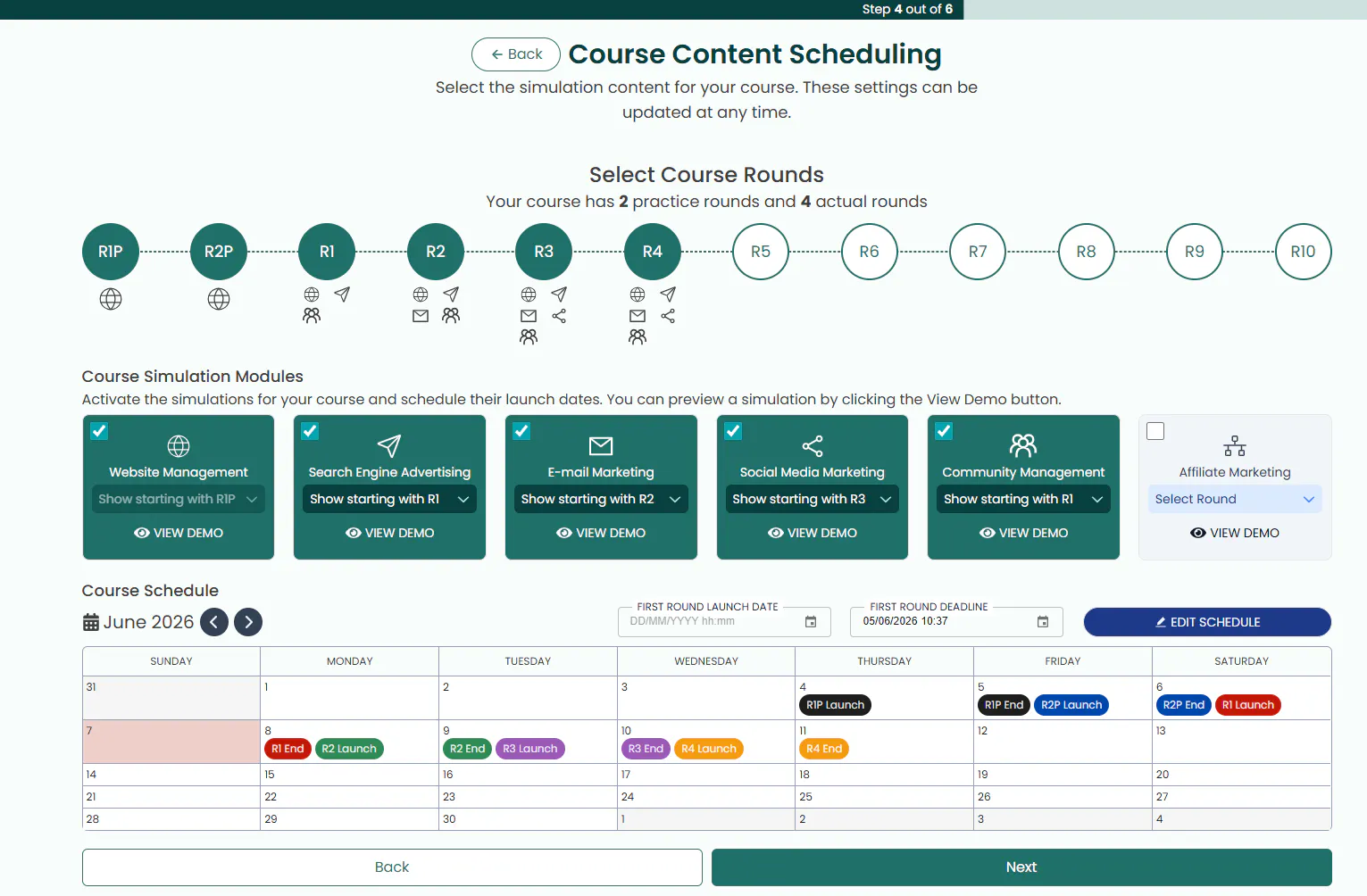
Course builder — the six-step setup wizard guides you through the setup, licensing, template, scheduling, and activities.
Add basic initial objectives for each round or test questions following the release of a new simulation section, allow the Preview mode (also called Check-up), and optionally enable SEA simulation rewards (performance-based extra budget). On Independent Progress courses you can decide if you want to allow participants to restart a round, go back and try out new strategies. You can set a reminder email to be sent to participants holding few or no decisions.
This final step lets you review the course settings — you can copy and paste this summary and send it to co-instructors so they can help verify the course structure. Once saved, the system issues a unique course enrollment link and lets you send email invitations or set up invitations to your co-instructors.
Tip: Give your course a clear, descriptive name that includes a date stamp such as the semester or year (e.g., "MBA Digital Marketing — Summer 2026"). This helps if you run the same course across several terms and need to tell them apart.
Important: You can change most settings after a course starts, but the Licensing, Scenario Selection,and the Course code cannot be changed once set. See Editing a course after launch.
At Step 3 of course creation you can choose a template that pre-fills the course structure. You can fine-tune these details afterwards in the next step.
| Template | Teams | Practice rounds | Actual rounds | Interval between rounds |
|---|---|---|---|---|
| Small | 2–6 | 1 | 5 | 1 day |
| Regular | 6–10 | 1 | 5 | 1 week |
| Large | 10–16 | 2 | 8 | 1 week |
Tip: The template is a starting point — you set the final number of rounds, deadlines, and which simulation sections appear in which round at Step 4 of the five-step course setup wizard.
Progressing through rounds defines the pace of the simulation. Each round is one period in which participant teams input their marketing decisions and submit them to close off that round. You can control how and when each round opens and closes from the Calendar module. From there you can add, remove, restart, or reschedule rounds, and enable or disable access to individual simulation sections. You can add or disable markets or audience segments for the Social Media Simulation at any time.
Practice rounds let participants try the interface and decision making before scores count. For beginner cohorts, 1–2 practice rounds are recommended.
Restarting lets participants re-enter the previously completed round to change their decisions in the case they launched a round by accident or if they want to make changes to their previously submitted decisions. Participants can restart rounds individually only within Independent Progress courses if the Instructor allows them to do so. In shared progress courses, only instructors can restart rounds, and this applies to the entire class.
Preview mode (also called Check-up) gives limited access to predictive results during an active round, so participants can assess their performance before submitting the round. Enable or disable this option during course creation or from Course Settings.
Important: Deleting a round removes its results and the Participants' simulation email campaigns, but it retains assets — Websites, SEA, SMM Campaigns, Communities, and Affiliate campaigns are kept.
Simbound enables team-based activities, with each team submitting one set of decisions per round. You can manually assign teams or allow students to form their own.
Click "Create Team", then edit the team name (e.g., "Team Alpha" or "Group 1"), and save. Repeat for each team you want.
Each team gets a unique link. When a student joins via that link, they are placed directly into the corresponding team. See Enrollment links.
All students join the course without a team allocation. You can see them choosing teams in the "Participants" section.
You can move each student into a team from the same 'Participants' pane,. Click on the Settings button next to their name for this option.
Tip: If students are allowed to self-form groups, use Option A and share each team's specific link with the students who belong to that group. This avoids the manual step of reassigning them later.
After creating a course, participants join using the course enrollment URL, which contains the unique 5-character course code. Each link encodes the course code and, optionally, a team assignment.
The link is shown on the final screen of the course builder. Copy it from there and you're ready to share.
Open your course and go to the 'Settings' tab of the course — the enrollment link and code are always there.
On the Participants tab, use "Invite Participants" to email the enrollment link to several people at once. Paste the same link into Moodle, Canvas, Blackboard, or any LMS — participants with an existing Simbound account can join without re-registering.
On the Participants tab, each team has its own unique link — share each one only with the participants who belong to that team. Once participants are enrolled, you can start the simulation immediately.
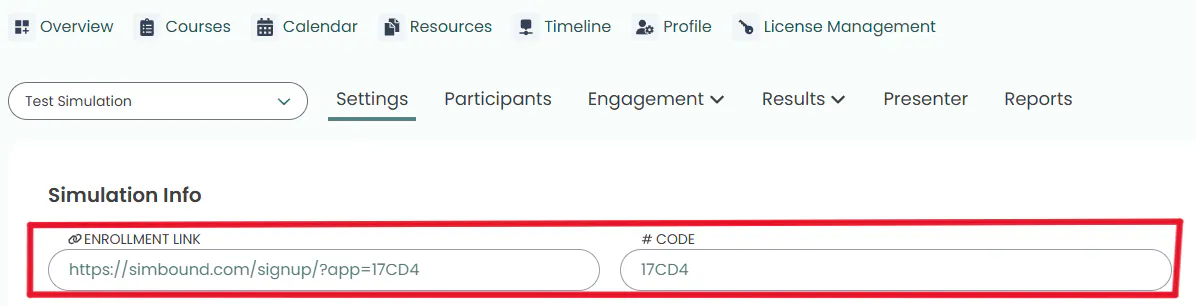
Settings Page — course enrollment link and 5-character code are displayed. Copy the full URL for the easiest participant experience.
From the Participants tab you can view and manage everyone enrolled in the course, see their teams, and act on individual accounts.
Each course can have three optional test accounts, auto-enrolled for testing and for demonstrating the simulation in front of the class. Use them to walk through the participant experience before your cohort arrives.
Click on the Settings symbol next to a participant's name to access the following actions:
| Action | What it does | Implications |
|---|---|---|
| Participant Info | Change Name, Email or Assign a New Password | Inform Student of Changes. |
| Login As | Full access to their account for troubleshooting. | Actions are saved, so use it cautiously. |
| Delete account | Permanently remove a participant or team. | This is irreversible. |
| Remove From This Course | Removes student from the course. | Student is unenrolled or defaults back to previous course. |
| Move To Another Team | Reassign a participant to another team. | You can transfer all of their existing assets if the destination team has no website yet. |
| Move To Another Course | Reassign a participant to another course. | You can transfer all of their existing assets if the destination team has no website yet. |
You can send messages to individual participants or entire teams, filtering by active or dormant status, display participant decision counts, and reassign accounts between teams or courses as needed.
Important: Deleted participants cannot be restored. Remember that the license is only refunded if a participant is removed before the first round deadline — see the licensing section.
Open the course settings by clicking the course name on your instructor dashboard. Most configuration can be adjusted here after the course has started. Settings you can change include:
Every course includes optional activities to boost interactivity and learning outcomes. None of them are mandatory and will not prevent a participant's progression within the simulation.
Set basic tasks for each round to guide participants and track engagement. Objectives can be edited or removed, but it's best to keep them stable once the course has begun.
Provide extra search advertising budget for specific decisions or strong performance to encourage strategic behaviour and competition. Enable or disable bonuses anytime via Course Settings. You can also query the chatbot for the bonus condition of each round.
Tests measure understanding of simulation concepts and track learning progress. They consist of multiple-choice questions with four options, where one (or more) are correct. Crucially, questions are dynamically generated from each participant's own simulation data, which prevents answer sharing. Tests may assess:
The Results & reporting module displays participant performance across every simulation section — Website, Search Engine Advertising (SEA), Email, Social Media Marketing (SMM), Community, and Affiliate — and supports ranking participants or teams across one or multiple rounds and across different courses.
| Section | Example metrics |
|---|---|
| Website | Traffic by source (Organic, Direct, Referral, SEA, Email, SMM); Visits, Leads, Lead Rate, Conversions, Conversion Rate, Gross Profit, market share. |
| SEA | Impressions, Clicks, CTR, CPC, Cost, Conversions, Conversion Rate, Gross Profit, ROAS, CPA, market share. |
| Opens, Open Rate, Clicks, CTR, Conversions, Gross Profit, Unsubscribers, market share. | |
| SMM (posts & ads) | Posts, organic and paid conversions, boost campaign cost and ROAS; ad impressions, CPM, leads, conversion rate, ad cost, gross profit. |
| Community | Number of communities, Members, Engaged Members. |
| Affiliate | Visits, Conversions, Paid Commission, Promotion Cost, Websites, Gross Profit, Net Result. |
Simbound captures participant engagement — SEA bonus completion, Test results, End-of-round comments, Learning-journal entries, and the general Simbound Quiz. The main engagement metric is Decisions: the number of times a participant creates, updates, or deletes entries in their simulation (for example, a new ad campaign, a keyword edit, or an ad variation).
You can view and download comprehensive spreadsheet reports for deeper analysis, including a configurable Team Report covering team and individual performance, ranking trends, changes from the previous round, improvement insights, SEA decisions and results, and general participant statistics. You can also share files and learning materials with participants through the Resources module (JPEG, PNG, GIF, PDF, MS Word, and MS PowerPoint).
Simbound is flexible: you can modify most settings even once the course has started. A few core choices, however, are locked once the course is created.
| Editable after creation | Cannot be changed |
|---|---|
| Deadlines, Rounds, Section availability, Objectives, Tests, Teams, and Participants | Course code, Scenario selection, and Licensing method |
Best practice: Plan course settings in advance to reduce post-launch adjustments.
Cloning duplicates an existing course configuration so you can reuse it across multiple runs or units with consistent setup. The system creates an exact copy of the selected course, including:
Note: Participant accounts and data is not copied to a cloned course — you'll share a fresh enrollment link for the new run.
Archiving moves inactive or completed courses out of your main dashboard into the Archive section, keeping your workspace uncluttered.
Important: Over time, archived course data is permanently deleted from the system. Archive a course only after you've exported or saved all results and reports you need.
Co-instructors share the same management and reporting access to a course. Adding one is especially useful for large cohorts, or when you're sharing management with a colleague or teaching assistant.
Course Settings You can set up a co-instructor account at the end of the course builder (Step 5) or anytime afterwards from Course Settings.
Enter the co-instructor's email address. The invitation contains an initial, system-generated password they'll use to log in.
Once added, the co-instructor can help manage the simulation and read its reports, and the course appears on their instructor dashboard.
Note: If the invitee already has a student account, it will be upgraded to an instructor account.
Before your course goes live, run through this checklist to make sure everything is in place.
Tip: Run a quick test round before your real Round 1. Create a practice round, have one student (or yourself with a test account) submit decisions, and calculate results. You can then remove results and the test account.
A multiple-week course works well with 4 to 6 rounds — one every week. Set round deadlines at consistent times (e.g., every Monday at 23:59) so students can plan their submissions. Make sure a Round opens at least 48 hours before its deadline so students have time to act.
Yes. Create named teams in advance and share each team's unique link with the students who belong to that group. When they enroll via that link they are placed in the correct team automatically. Alternatively, you can create teams after enrollment and place students into teams manually.
You can move students between teams at any point. Go to the Teams tab, find the student, and move them to the correct team. Moving a student after decisions have been submitted for a round may require you to copy their decisions to the destination team.
Yes — use the Clone option. Cloning creates an exact copy of the scenario, currency, section availability and release rounds, licensing method, number of teams, practice/preview/restart settings, and objectives and test questions. Participant data is not copied, so you'll share a new enrollment link for the cloned course.
No. Round deadlines calculate results for the whole course automatically at the predetermined time, with no action needed from you. The exception is courses where participants progress independently and results appear o demand rather than at a shared deadline.
Use instructor/school-funded licenses when your institution covers access or Participant-funded (Online Payment) when participants pay individually at enrollment. Optionally you can ask for the Platform Credits method for an individual, asynchronous self-paced learning course where participants can pay for their consumption.
Participants can keep enrolling even if your license balance reaches 0 or goes negative — you simply confirm payment for the extra licenses used. Track usage anytime using your dashboard.
Only on Independent Progress courses where you allow a restart of a completed round or when you restart a round for the entire course on a Shared Progress course.
Yes. Skip team setup as this allows independent progress, which is ideal for individual learning.
Was this guide helpful?
Thanks for your feedback!