Method 1 — From The Results page
This is available only if your course allows you to run the simulation independently and does not have instructor-set deadlines.
Restarting a round allows saving new decisions for a previously closed round and obtaining different results. Here is how you can do this.
This is available only if your course allows you to run the simulation independently and does not have instructor-set deadlines.
Important: Restarting a round removes its results until you re-submit decisions for that round, after which new results will be available.
Go to simbound.com and enter your credentials to access your current course.
Click on the Results icon in the left hand side menu, then look for the "Restart Round" button which is in the upper right of the screen.
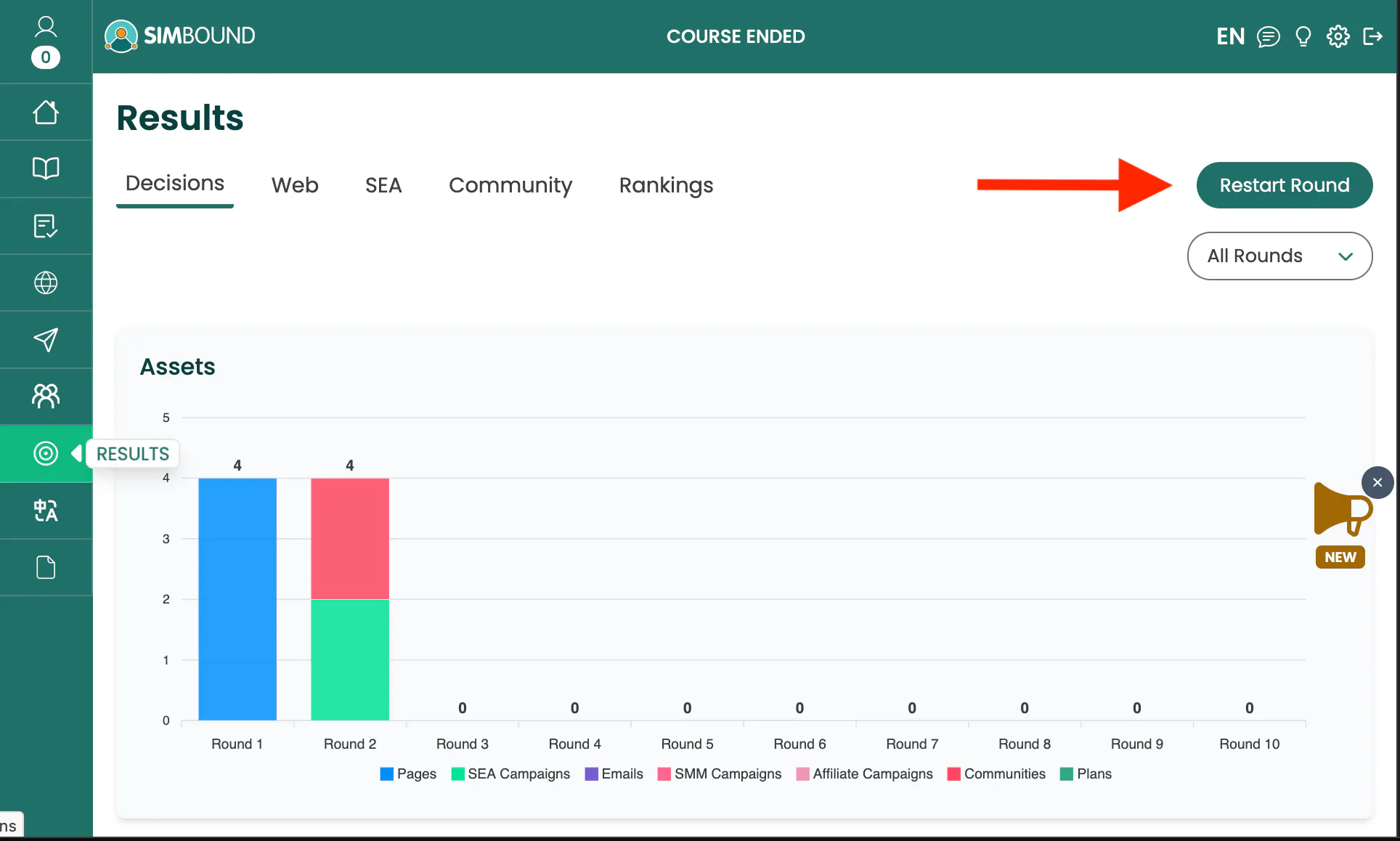
Results — The "Restart Round" button is located in the top-right corner
You will be asked if you want to re-enter the previously completed round where you can change decisions and then submit your decisions. There are up to two restarts available, or less depending on the course settings.
Keep in mind: If you decide to restart to a previous round then all of your existing assets: Websites, SEA, SMM and Affiliate campaigns, as well as the Communities will be preserved. Email campaigns or Social Media Posts can be removed if desired.
If the course uses deadlines that were set in advance by the instructor, learners cannot restart a round on their own. Only the instructor has the right to restart a round, and this applies either to the entire class or to some students/teams.
Important: Restarting a round temporarily removes its results until new results are generated at the next scheduled deadline.
Go to simbound.com and enter your email and password. If you have forgotten your password, click "Forgot password?" on the login page to reset it. Then follow these steps.
From the main menu, open the Course Calendar. Then click "Manage Rounds" and select the course you want to modify.
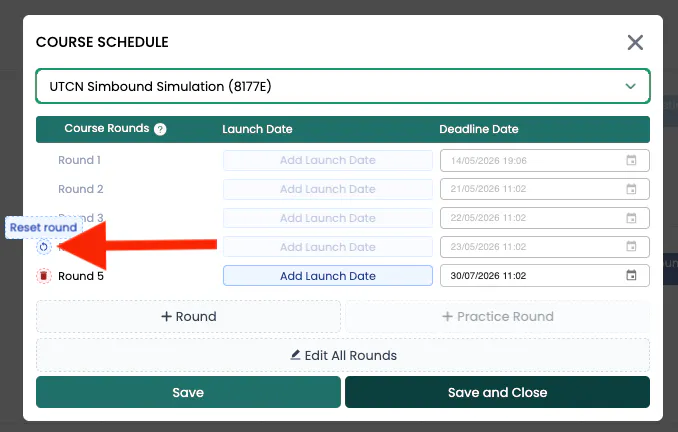
A Reset Round button is shown next to the most recently completed round
You will need to set up a new deadline that is set in the future. You can also choose to remove social media posts or email campaigns that were set up during the round.
Keep in mind: Students who already submitted decisions won’t be asked to resubmit, unless you remove emails or social media posts—in which case they will need to submit these again.
On the "Participants" page of the Instructor dashboard you may choose to Re-Run any Simulation Round again for one Student or Team alone (coming soon).
You can check this if you go to "Results" and click on the Restart Round button. For instructor-led courses there is no limit on how many times you can restart a round.
You don’t need to restart the round. Simply update your decisions and either run the simulation or wait for the deadline to pass.
Yes. Instructors can restart a round for an individual student or team without affecting the rest of the class.
If you are allowed to run the simulation independently then yes. Once a deadline-based course reaches the last round the instructor wont' be able to restart it. One workaround for this is to add an additional new round and then restart the previous round.
No. Your Websites, SEA, SMM, Affiliate campaigns and Communities are kept. Only Email campaigns and Social Media Posts can be removed, and only if you choose to.
Either your course uses instructor-set deadlines, so only your instructor can restart, or you've used up the restarts available for your course.
No. Just re-submit the same decisions to get your previous results back.
No. Your results are removed until you re-submit, then your score updates to match the new decisions.
No. You can restart for one student or team without affecting the rest of the class.
Was this guide helpful?
Thanks for your feedback!